
One Self-Hosted Hub for Your AI Conversations: Using ConeShare MCP Across ChatGPT, Claude, and Gemini
Stop losing useful AI threads across separate chat histories. Learn how to save, organize, and search conversations from ChatGPT, Claude, Gemini, and other AI tools in one workspace using ConeShare Remote MCP.
Most people who use AI regularly do not stick to one model. You might brainstorm product positioning in ChatGPT, work through architecture or code in Claude, and run research in Gemini or other tools.
Two weeks later, you remember a useful architecture decision or draft from one of those sessions, except you have no idea which app it happened in. Built-in chat search only covers one vendor's sidebar, and native share links just give you an isolated public page with no folder structure or access controls.
With ConeShare's Remote MCP server (coneshare-mcp), you can save conversations and summaries from any connected AI tool into one workspace, organize them by project, search them later, and share them with access controls when needed.
Why chat history and native share links fall short
Vendor chat histories work fine for finding yesterday's thread, but they break down once AI output turns into project work:
- Context gets split across ChatGPT, Claude, Gemini, and desktop or coding AI tools.
- Threads sit flat in chronological order instead of sitting next to the PDFs, decks, or spreadsheets for that project.
- Built-in share links are single-thread public URLs. You cannot group five related chats into one folder, put a password or expiration date on them, or see whether a teammate actually read them.
Saving those outputs over MCP stores them as Markdown documents in your own workspace, either on ConeShare Cloud or on your own self-hosted instance.
Step 1: Connect your AI tools via Remote MCP
ConeShare runs a hosted Remote MCP endpoint at https://app.coneshare.com/mcp/sse (and every self-hosted ConeShare deployment exposes /mcp/sse on its own domain). You do not need to run a local Node or Python daemon to connect web AI apps.
Option A: Web AI clients (ChatGPT, Google Gemini, Claude.ai)
Web clients connect over OAuth 2.1 in your browser:
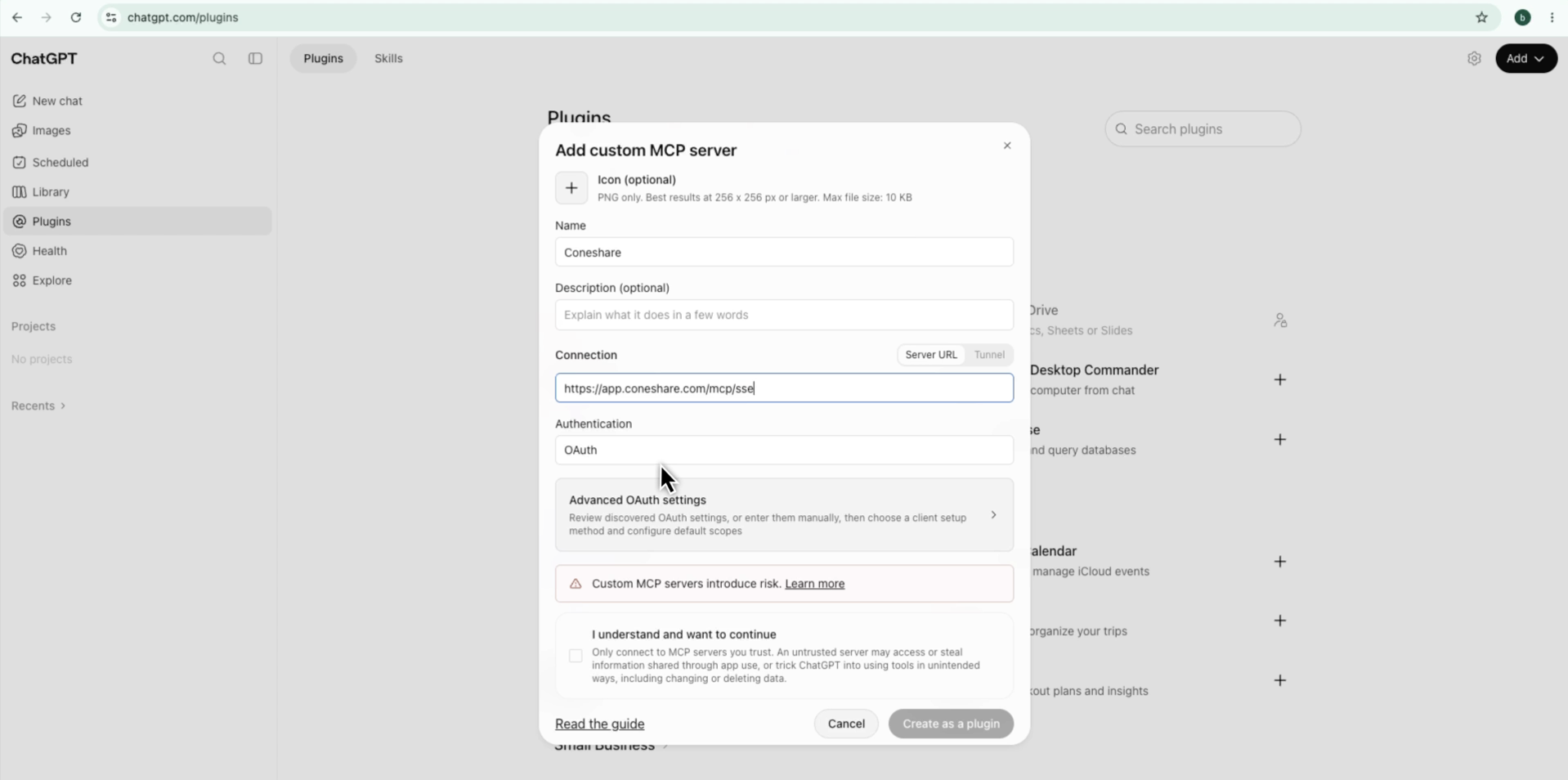
- Open your AI client's custom MCP connector settings and paste
https://app.coneshare.com/mcp/sse(or your self-hosted URL).
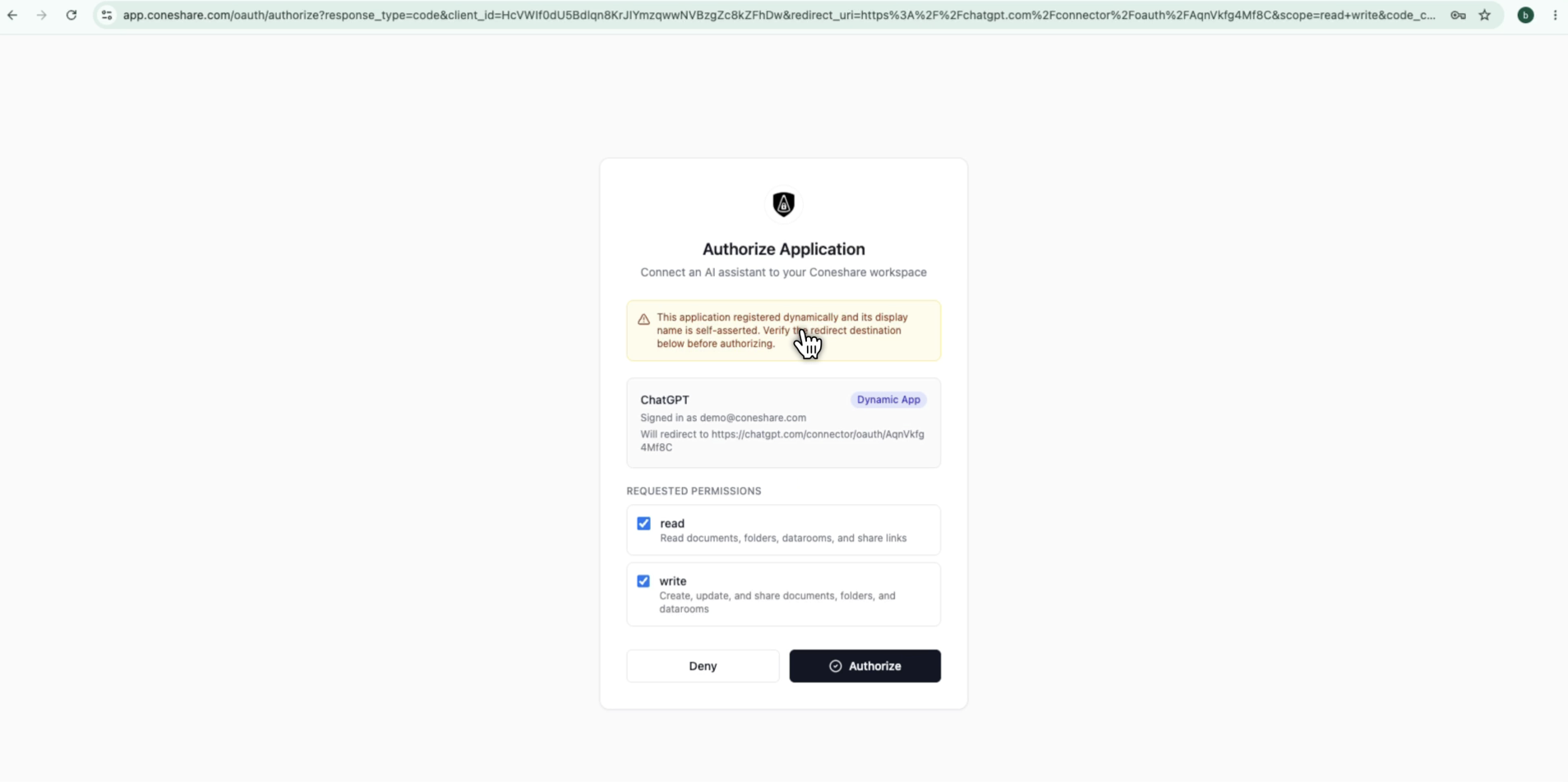
- Sign in to ConeShare in the browser prompt and approve
readorwriteaccess. Destructive deletes, admin endpoints, and viewer PII stay blocked on OAuth tokens by default.
Option B: CLI and desktop coding agents (Claude Code, Codex, Cursor, and more)
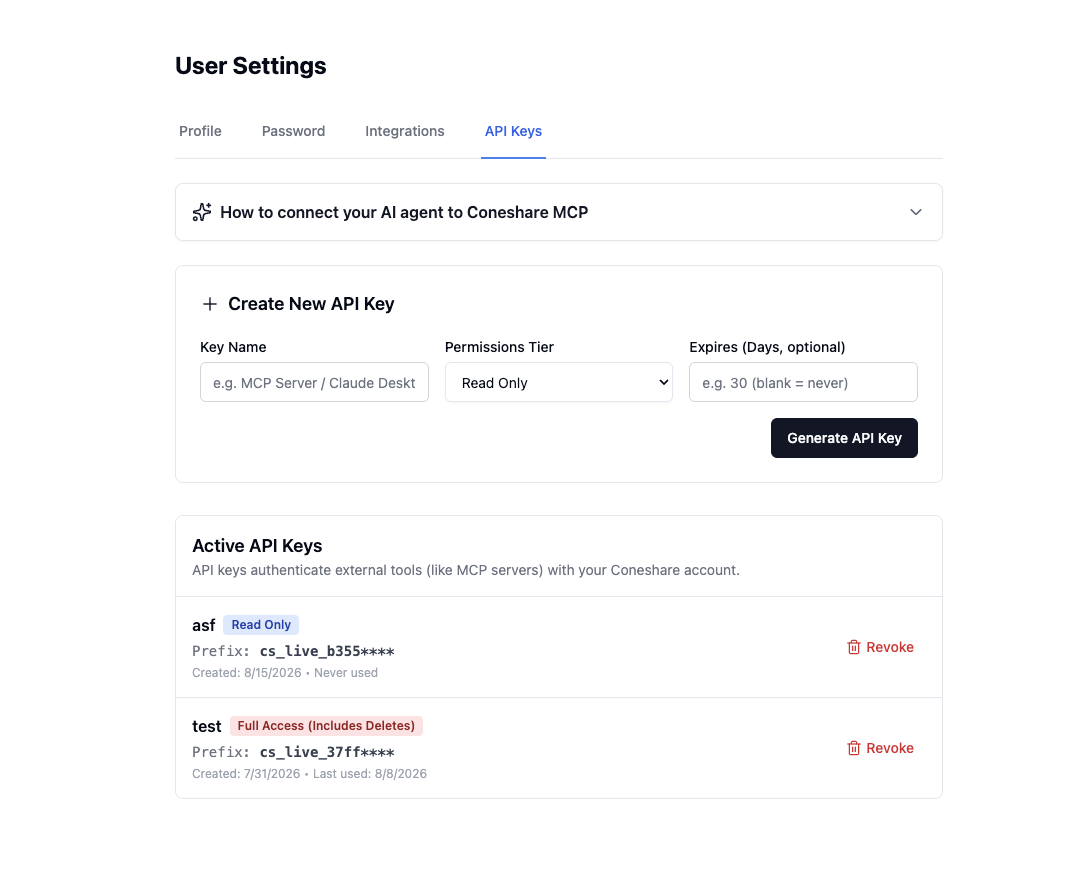
For local coding tools, generate a scoped API key (read_only, read_write, or full_access) under Settings > API Keys in ConeShare, then add the MCP config block:
{
  "mcpServers": {
    "coneshare": {
      "url": "https://app.coneshare.com/mcp/sse",
      "headers": {
        "Authorization": "Bearer cs_live_YOUR_API_KEY"
      }
    }
  }
}
If you want client-specific instructions or the full tool catalog, check the ConeShare AI Agents setup guide.
Step 2: Save conversations as structured Markdown
Once connected, your AI assistant can write Markdown directly into your Personal Documents folder tree. Missing folders are created automatically, and .md files render inline in ConeShare's web viewer without waiting for background conversion jobs.
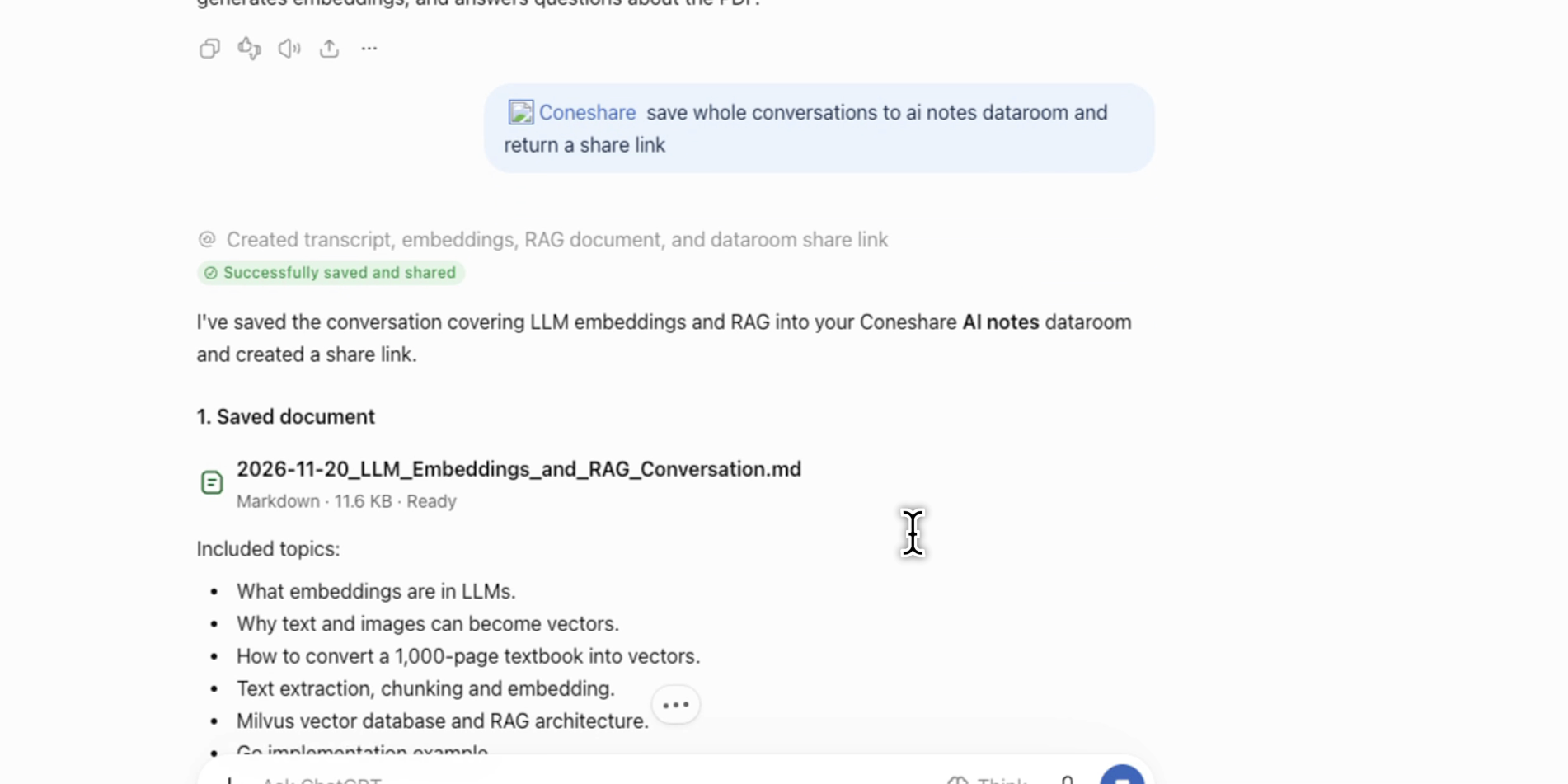
Save a clean decision summary with searchable metadata
Full chat transcripts often include false starts and debugging noise. Asking the model to distill the outcome and include a short description makes the note easier to find later:
Summarize the architecture decisions, rejected options, and next steps from this chat as Markdown. Save it to ConeShare under "AI-Notes/xxx/".
Archive a full transcript when exact wording matters
When you need the verbatim prompts, SQL queries, or legal/copy drafts for reference later:
Save our full conversation verbatim as Markdown to ConeShare under "AI-Notes/xxx/".
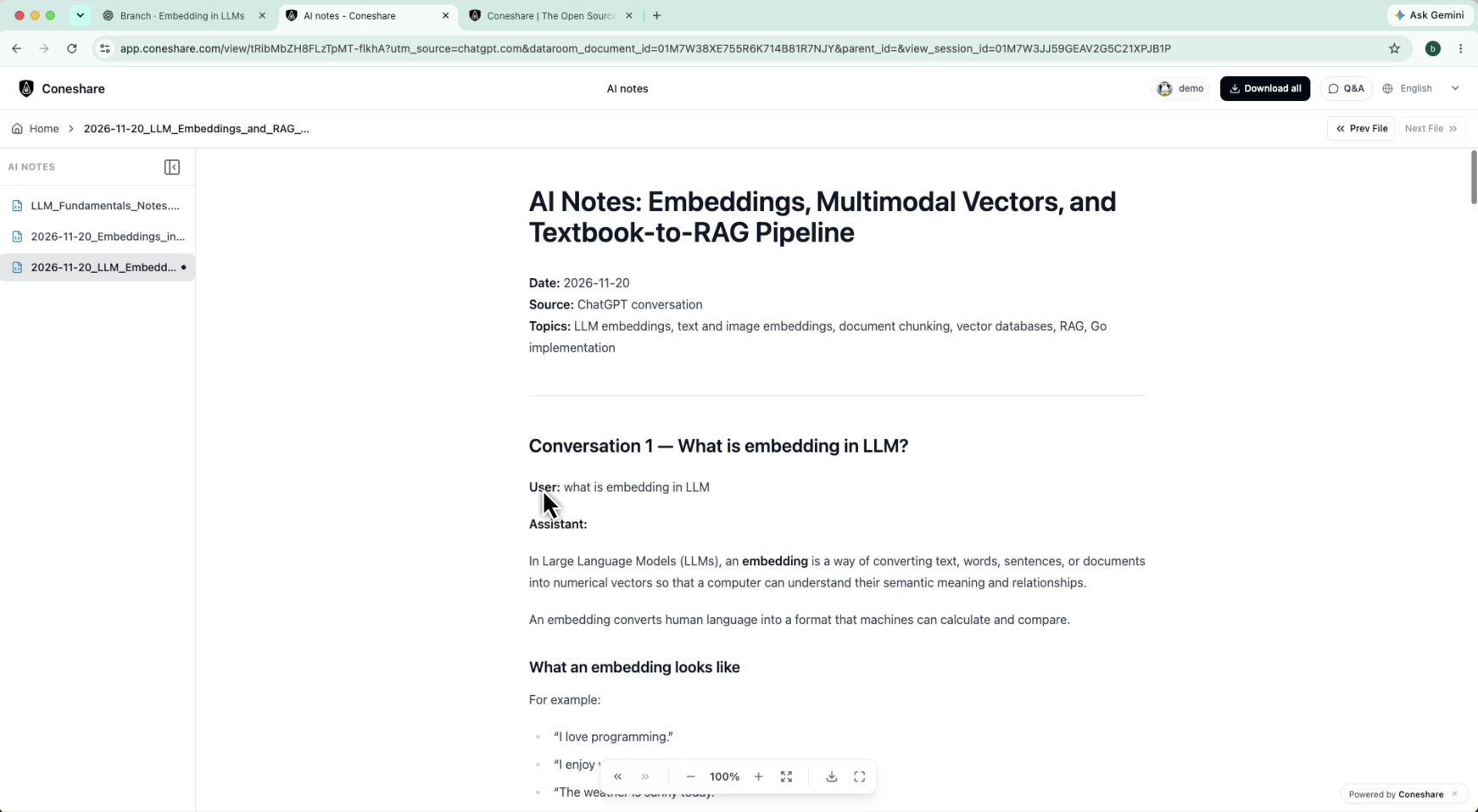
Those saved Markdown notes live in your own ConeShare workspace (whether on ConeShare Cloud or a self-hosted instance), rather than staying stuck inside each AI vendor's chat history. Once saved, you can open and read the rendered Markdown in ConeShare's web viewer:
Step 3: Organize by project and find threads from any AI client
Saving files helps most when notes from ChatGPT, Claude, Gemini, and other tools sit together by project.
Group related AI notes in folders or Datarooms
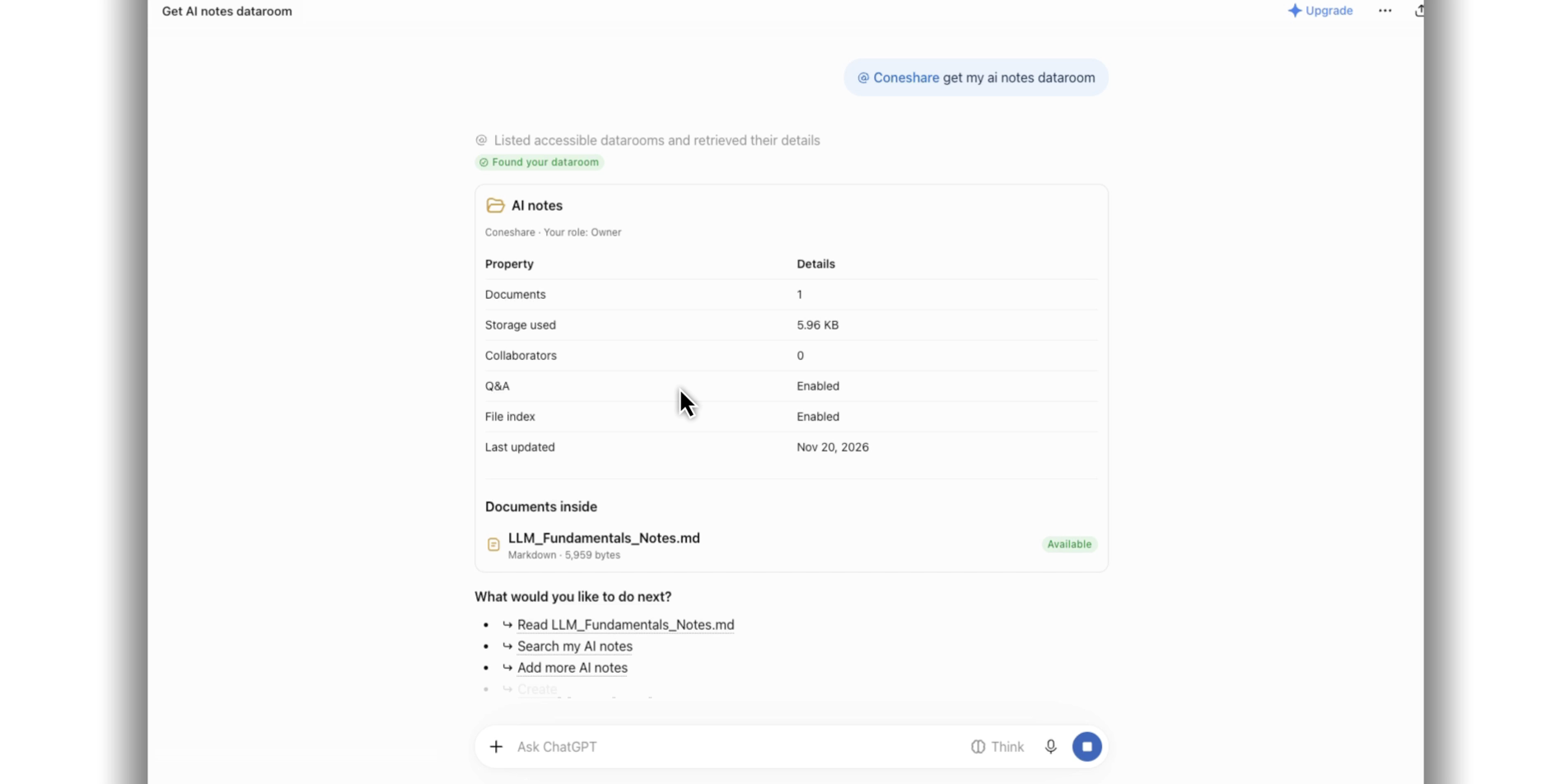
You can keep notes in Personal Documents folders, or ask your assistant to put them inside a Dataroom next to PDFs, spreadsheets, and slide decks:
Create a ConeShare Dataroom called "Project Atlas - AI Research" and add the Markdown note we just saved along with the Q4 roadmap PDF.
Before adding more files, you can also ask the assistant to list what is already inside the room.
Tip: Keep notes in personal folders when they are only for your own reference. Create a Dataroom once you want to bundle them with other project files for external sharing or per-link permissions. See our ConeShare Datarooms guide for how the two fit together.
Locate past conversations across tools
When you start a new session in a different client weeks later, you do not have to dig through old browser tabs to find where a note landed. Ask your AI to search by title, description, or folder path:
Search my ConeShare documents for "auth-decisions" or "OAuth 2.1" and give me the folder path, description, and any active link.
The assistant gets back the matching metadata, descriptions, folder paths, and links, so you can find the right thread from any connected client and open the full rendered Markdown in ConeShare.
Step 4: Share AI outputs without exposing raw chat links
Sometimes a conversation needs to go to someone else, like a teammate reviewing a spec or a client reading a proposal.
Instead of pasting a raw chatgpt.com/share/... URL with no access controls or view history, you can ask ConeShare to create a controlled share link for a single Markdown document or an entire Dataroom:
Create a share link for the "Project Atlas - AI Research" Dataroom that expires in 7 days, requires email verification, and sends me an email notification when someone opens it.
Markdown documents render inline with copy protection and reading-depth tracking, while PDFs, Office files, and images in the same Dataroom also support dynamic watermarks. You can see who opened the link and how far they read in the ConeShare dashboard (or through local agents connected with an API key).
For everything else supported over MCP, including folder operations, Dataroom management, share link controls, and analytics, see the full tool list on the ConeShare AI Agents page.
Try it yourself or self-host it
ConeShare is open source under the MIT license and runs either as a managed cloud service or on your own server.
To try the cloud version, point ChatGPT, Gemini, or Claude.ai to https://app.coneshare.com/mcp/sse, or follow the ConeShare AI Agents setup guide for client configs and the full tool list. To run it on your own server, visit github.com/coneshare/coneshare and follow the installation docs so all saved conversations and MCP traffic stay on your own infrastructure.
If you bounce between multiple AI tools every day, keeping useful threads in one workspace saves you from hunting through four separate sidebars later.